


Why You Should Learn Chroma Key in Premiere pro Now
Green screen, or how to use chroma key in premiere pro, is the process of shooting video against a solid color background and then digitally removing this background. “A plain, solid backdrop at a studio can easily transform into an expensive, lush tropical beach, gritty cityscape or imaginative space station on the computer screen,” says Vice President of technology for Pixel Film Studios “And filmmakers don’t have to leave their home studio to make such thought-provoking videos.” The flexibility of green screens has radically transformed video production, virtually eliminating the dependence on costly in situ filming.
A common tool for this is the Ultra Key effect of Adobe’s Premiere Pro. This user-friendly feature makes the keying process easy and efficient, so you can quickly remove greenscreen and layer your images or videos with ease. Its intuitive interface helps simplify a task that used to be the mainstay of professional video production, letting aspiring producers create polished replacements even if they’re just getting started with editing. Regardless of these developments however, a lot of online tutorials often skimp on some common pitfalls that come with trying to achieve really polished results.
One example is non-uniform illumination of the green screen which can cause shadows or variations in color that makes clean removal problematic during editing. And, fine lines (like small hair) need extra attention, without that last little bit of finishing you wouldn’t see the same quality and detail in the final output it will look plain out weird or amateur if not refined correctly which is simply done with praying edge feathering and spill suppression. Tackling these frequent obstacles will be pivotal for all that who want an effective visual transformation through green screen effects.
With more content creators needing to shoot from home and particularly as short-form video becomes all the rage on platforms like TikTok and Reels having fast chroma keying is increasingly useful. Learning how to do green screen in Premiere Pro will set you apart from film-makers who are going after the ‘easy option’ and trying to get results through pure software. You’ll also want to upgrade your setup beyond the instruments with tools like Elgato green screens check out some recommended options at the end for streamlining your work.
Gear Before You Learn How to Use Chroma Key in Premiere Pro
- Start with basics. Flat green screen (you can use a pop-up frame with fabric). Evenly diffused light, from two soft boxes illuminates subject and background independently.
- Camera is less important than consistency phone footage keys fine if it’s well-lit. Avoid shiny greens; matte wins. For Premiere Pro users, combine with a greenscreen kit for less than $100.
- Test shot: subject was three feet from screen, there are no shadows. This prep reduces 80% of fixes afterward.
How to Use Chroma Key in Premiere Pro Step by Step Ultra Key Method
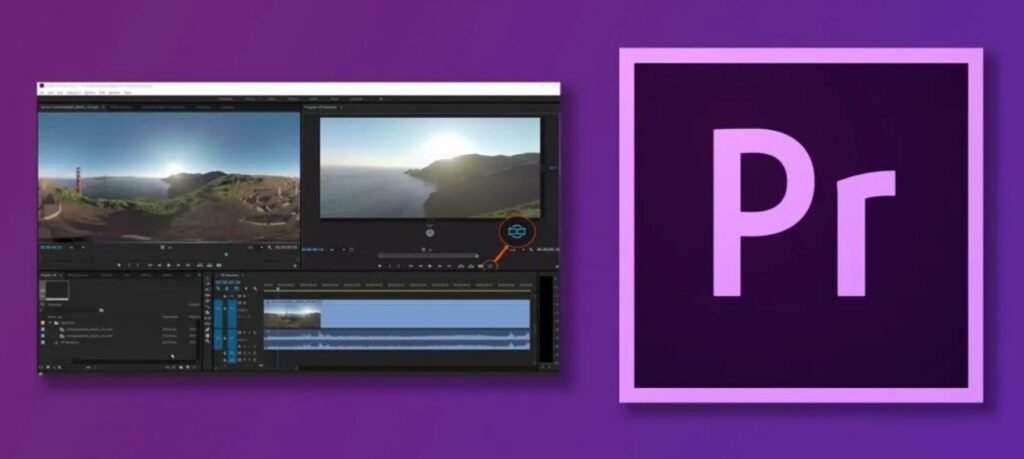
Step 1: Import and Stack Your Footage Once your selected videos are downloaded, open Premiere Pro
- Launch Premiere Pro. Import both green screen clip and background video files into Media Browser. Drag background image to V1 track, green screen to the v2 on top of it.
- Match sequence settings: right-click clip, New Sequence from Clip. Scrub timeline - green spills over the background here like it should.
Step 2: Use the Ultra Key Effect
- Search for “Ultra Key” in the Effects search box (Window > Effects if not open). Drag to green screen clip. Effect Controls opens automatically.
- Clip goes instantly transparent, exposing the background. Magic starts here.
Step 3: Choose your Key Color with Eyedropper
- Go to Effect Controls > Ultra Key > Key Color and select eyedropper. Alt-click (Option on Mac) a pure green area of the screen. Avoid edges or shadows.
- Green vanishes, subject pops. Tweaks: If spill persists then adjustments are next.
Step 4: Adjust Matte Generation for Clean Edges
- Expand Matte Generation. Set Tolerance (High) to something between say 1.0 – 1.5 for assuming less and wide ranging of removal. Pedestal (10 Pulls) 10-20 pulls some subtle greens.
- Edge Feather 1-3 smooths hard edges. 5-10 Edge Threshold keeps hair detail. Fullscreen preview – live edits.
Step 5: Correct Color Spill and Shadows
- Spill Suppression > Target Spill Color eyedropper on green near subject. Suppression Amount 50-80%.
- Transparency slider fine-tunes opacity. Output > Alpha Channel: For compositing professionals. Date Hookup- Testo 0), (Re- Render preview (Enter) cannot see blend.
Step 6: Layer and Polish Your Key
- Just drop Lumetri color on an adjustment layer above for matching exposure. Curves tweak contrast. Motion blur if needed.
- Export test via Media Encoder. Boom – professional key done.
Mistakes to Avoid When You are New in Learning the Procedure of How to Use Chroma Key in Premiere Pro.
- Lighting kills keys. Ragged greens make holes; repair with three-point system (key, fill, back).
- Reflective clothes? Desaturate in Lumetri first. Wrinkles? Iron or steam screen. Patience pays.
Advanced Tips: Elevate Your How to Use Chroma Key in Premiere Pro Game
Multi-Key for Complex Backgrounds
Stack several Ultra Keys for colored spills. Garbage Matte (8-point polygon) masks any rogue pixels.
Keying Hair and Translucency
Lower Edge Threshold, boost Feather. Third-party effects such as Boris FX Continuum do a better job on the edges than stock.
4K and High-Res Workflows
Proxy edits for speed. Full res on export. GPU Faster (Mercury Playback) renders More information: Note that you might receive a notification for admin rights.
How to Use Chroma Key in Premiere Pro vs 5 Best Alternatives
DaVinci’s default looks are soundly beaten by Premiere’s Ultra Key but not as good as After Effects 3D tracking. The in-built edges of Final Cut are slightly softer out-of-box.
Use Premiere for timeline workflows only. Export to AE for VFX-Heavy Keys.
Best Greenscreen Gear to Use with How to Use Chroma Key in Premiere Pro
You’ll be hard pressed to find a green screen that’s more portable than the Elgato Collapsible, which makes this an outstanding option for those in need of something they can take down or set up at a moment’s notice while filming videos or streaming. With a folding design and carrying handle, it can be easily taken from room to room, even tight spaces where most full-size strollers will not fit. Neewer popup If you’re going to be spraying on a budget, the Neewer pop-up is a cheap option with no frills but still has all of the basic functionality.
This would be great for someone just starting or a basement hobbyist who does not want to remortgage the house for lighting. Softbox kits on the other hand are known for providing smooth lighting all over the subject. With the use of diffusing smaller type light sources are ideally suited for minimizing shadows and obtaining that soft wrap around look. Companies with high-end studios won’t leave home without this kit an essential to have in studio or production office.
Step up to auto-tracking lights for solos.
FAQs – How to Use Chroma Key in Premiere Pro
Q1. What key effect do I use for chroma in Premiere Pro?
To do green screen in Adobe Premiere Pro, you will need to use the “Ultra Key” effect. You can get at this effect by going to Video Effects > Keying in the Effects panel. Once you’ve applied Ultra Key to your clip, it’s fairly easy to get inside and fiddle with the various settings in order to ensure a good key and have that clean replaceable background.
Q2. Why is my chroma key fuzzy in Premiere Pro?
A blurry or hazy chroma key result is usually due to inconsistent light on your green (or blue) screen, or by setting the color tolerance too close or too far. To get round this problem ensure that your backing is uniformly lit with neither shadows nor hotspots. Then, tweak the Matte Generation controls in Ultra Key (Pedestal, Transparency and Tolerance) until you have a sharp edge around your subject.
Q3. Can I do a blue/green screen key in Premier Pro?
Yes you can simply chroma key a blue screen with the same Ultra Key effect. If you applied Ultra Key to your clip, you’ll see the eyedropper tool under “Key Color” to help you select the specific tint of blue in your video. The procedure for blue screens is almost the same as for green; only make sure that blue doesn’t appear anywhere else in your scene.
Q4. Best green screen for keys and Premiere Pro?
For best results with Premiere Pro’s Ultra Key effect, look for a fabric green screen like this that’s tightly stretched and can be lit from behind or the sides to remove wrinkles and shadows. Some brands, such as Elgato, also offer portable and high-quality green screens made for video production many users of this equipment recommend them.
Q5. How can I eliminate green spill in Premiere Pro?
For eliminating unwanted green spill (color cast) along the edges after chroma keying, perform spill suppression with Ultra Key. Then, if necessary, sample the spill color with the eyedropper tool and increase the Amount slider (usually between 50 to 80) until any remaining green tint on your subject is eliminated without losing edge detail.
Conclusion: Learning how to use chroma key in Adobe Premiere Pro will change the way you produce your videos! By easily separating and replacing backgrounds, your imagination has no limits whether you’re achieving professional-grade cinematic effects; or communicating better in dynamic presentations and creative storytelling. To begin, try practicing these need-to-know steps on some sample or test footage so that you can get a handle on the concept and hone your technique.
Keep in mind that the right equipment can make a world of difference, so if you need to upgrade your space be sure to read through our round-up of the best green screen kits. When the lighting is right and the fabric backdrop ironed, chroma keying is easy to do. Sleek keys and contrasting productions are closer than you think, when you combine the best in technical ability with exceptional instruments.